Create 2×3 flashcards arranged for double-sided printing.
 LAST BELL STUDIO
02 / TEACHER TOOLS
FLASHCARD
MAKER
Turn images and words into print-ready classroom cards.
2×3 DUPLEX2×6 IMAGE + WORDMEMORY CARDSTUTORIAL MODE
WHAT IT DOES
BUILT FOR CLASS.
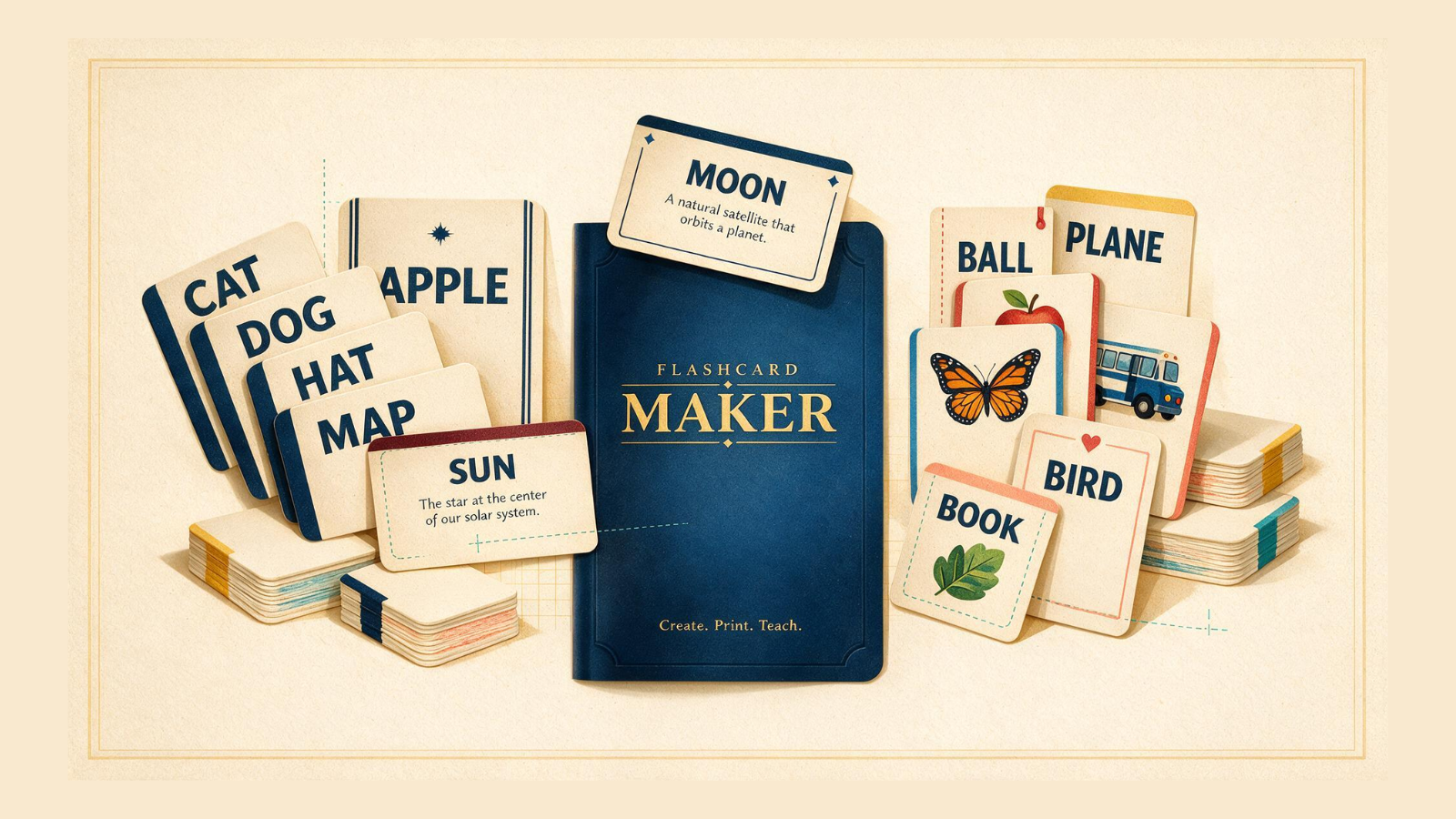
Use a 2×6 format with the image and word together on the same side.
Prepare single-sided cards for matching and memory activities.
THREE STEPS
HOW IT WORKS.
Load the images and words you want in the set.
Pick the card layout that matches the activity.
Check the printable layout, then create the PDF.
TEACHER FIELD NOTES
Choose the card format for the activity.
Flashcard Maker prepares classroom cards from images and words you provide. It is a preparation tool rather than a vocabulary course: you choose the content, check the spellings and decide how students will use the cards. Picture-led sets can support beginners; definitions, prompts or more demanding vocabulary can suit older learners.
Try a ten-minute vocabulary mingle
Create double-sided cards with a picture on one side and its word on the other. Model “What is this?” and an answer before students move around. Partners ask, answer and check the other side, then swap cards and find a new partner. Give learners who need support a short rehearsal with the words visible first.
For a quieter alternative, choose the memory format and put cards face down on a table. Require students to say the word or use it in a sentence when they turn a card over. An image-and-word sheet is useful when the goal is recognition rather than recall.
Print one test sheet first
Preview every card for clipped labels, small pictures and unexpected blank spaces. Test the 2×3 double-sided layout on your own printer before printing a class set; duplex orientation and alignment depend on the printer. Check both sides, cut one card and confirm that the intended fronts and backs match.
For the 2×6 image-and-word format, check that the labels will still be readable after cutting. Use images you created or have permission to reproduce, and avoid uploading identifiable student photographs unnecessarily.
Are my selected files sent to Last Bell Studio?
The maker processes selected files in your browser rather than intentionally uploading them to a Last Bell Studio classroom database. Keep your original images and the finished output somewhere safe; the app is not a cloud filing system.
Where can I get a ready-made on-screen activity?
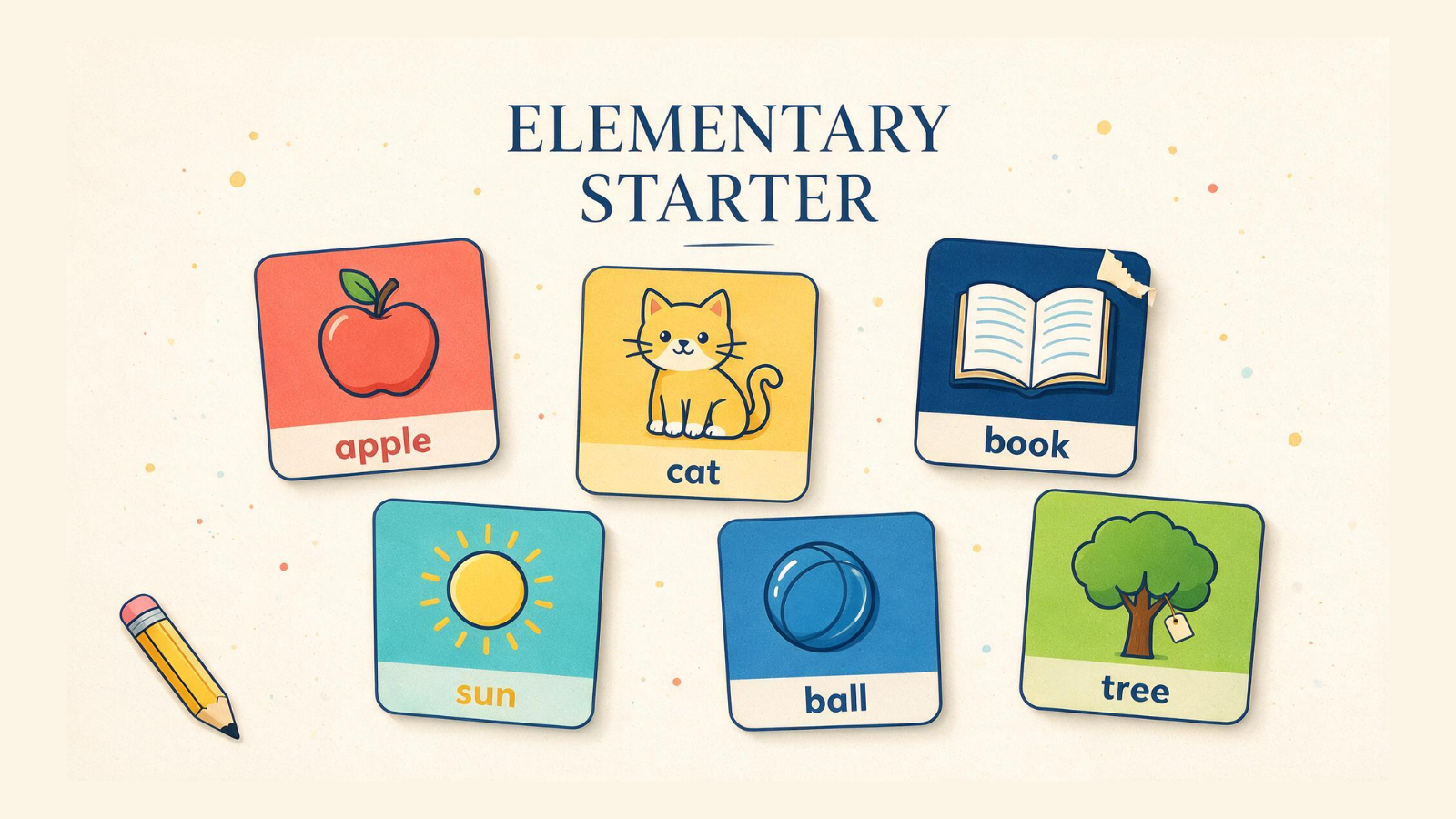
Try Elementary Starter for its existing vocabulary units. Use Flashcard Maker when you need your own printable material. The tutorial below walks through preparing a set before you commit paper and ink.
TUTORIAL
SEE IT IN ACTION.
BUILT-IN TUTORIAL MODE
YOU DON'T HAVE TO MEMORIZE THE APP.
Each classroom app is designed to teach itself through an interactive Tutorial Mode, so you can learn the controls by using them.
KEEP BROWSING