Keep student names ready so grouping does not start with retyping the class.
 LAST BELL STUDIO
02 / TEACHER TOOLS
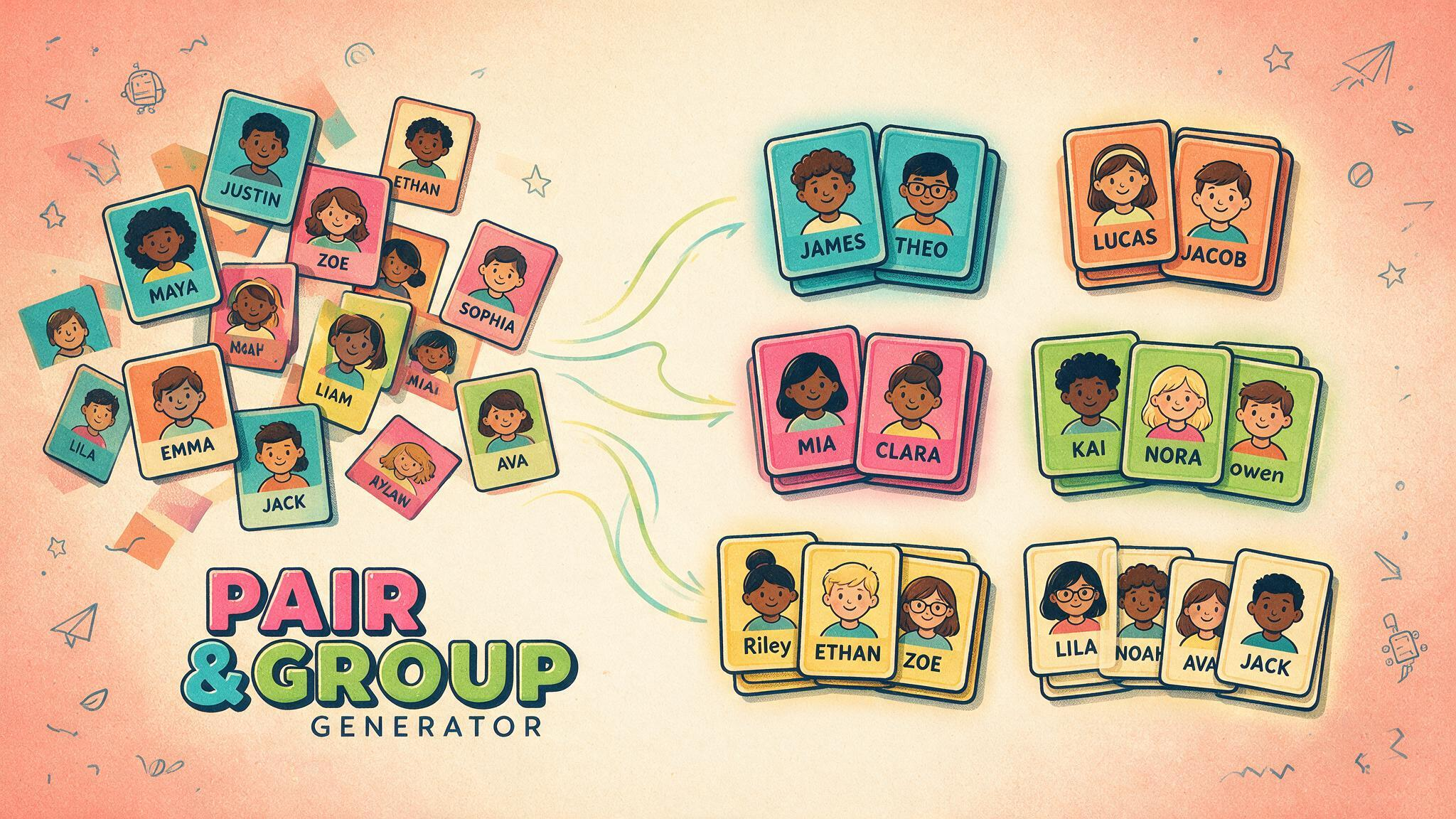
PAIR & GROUP GENERATOR
Build pairs and groups quickly without stopping your lesson.
CLASS LISTSABSENT STUDENTSGROUP SIZESTUTORIAL MODE
WHAT IT DOES
BUILT FOR CLASS.
Remove absent students from the current grouping without deleting them from the class.
Choose the grouping you need and create a new arrangement in seconds.
THREE STEPS
HOW IT WORKS.
Open the class list you are using today.
Temporarily mark absent students before generating.
Choose the group size and generate the arrangement.
TEACHER FIELD NOTES
Spend the transition on the task, not choosing partners.
Pair & Group Generator helps organise a class when you want a fresh arrangement without reading every name aloud. Save a class list, check who is present and choose a group size. It is useful for school-age learners through adults whenever the teacher wants a clear starting arrangement.
Try a partner interview
Prepare three questions at a level everyone can answer. Generate pairs and give partners five minutes to interview each other. Each learner then reports one interesting answer rather than repeating their own. For the next task, generate a new arrangement if mixing the class supports your goal.
Explain where students should sit or stand before displaying the groups. With a large class, ask one person in each group to raise a hand so others can find them. The software organises names; you still manage movement, noise and any adjustments the lesson needs.
Check the list before generating
Use recognisable, minimal identifiers such as first names or student numbers. Mark absences rather than deleting students who will return next lesson. Review the resulting groups for access needs, behaviour concerns and the practicalities of an uneven class size. A random arrangement is a starting point, not a guarantee of balanced ability.
Will I need to type the class again?
Saved lists are kept in local browser storage. Use the same browser and device to reuse them, and do not treat local storage as a cloud backup. On a shared computer, follow your school’s rules for saving names and clearing data.
Should I use this or Class Roulette?
Use this tool when everybody needs a partner or group. Use Class Roulette when you need one person to start or report back; it can reuse saved classes in the same browser. Tutorial Mode and the walkthrough below help you rehearse the grouping workflow.
TUTORIAL
SEE IT IN ACTION.
BUILT-IN TUTORIAL MODE
YOU DON'T HAVE TO MEMORIZE THE APP.
Each classroom app is designed to teach itself through an interactive Tutorial Mode, so you can learn the controls by using them.
KEEP BROWSING
RELATED APPS.

CLASSROOM ROUTINE
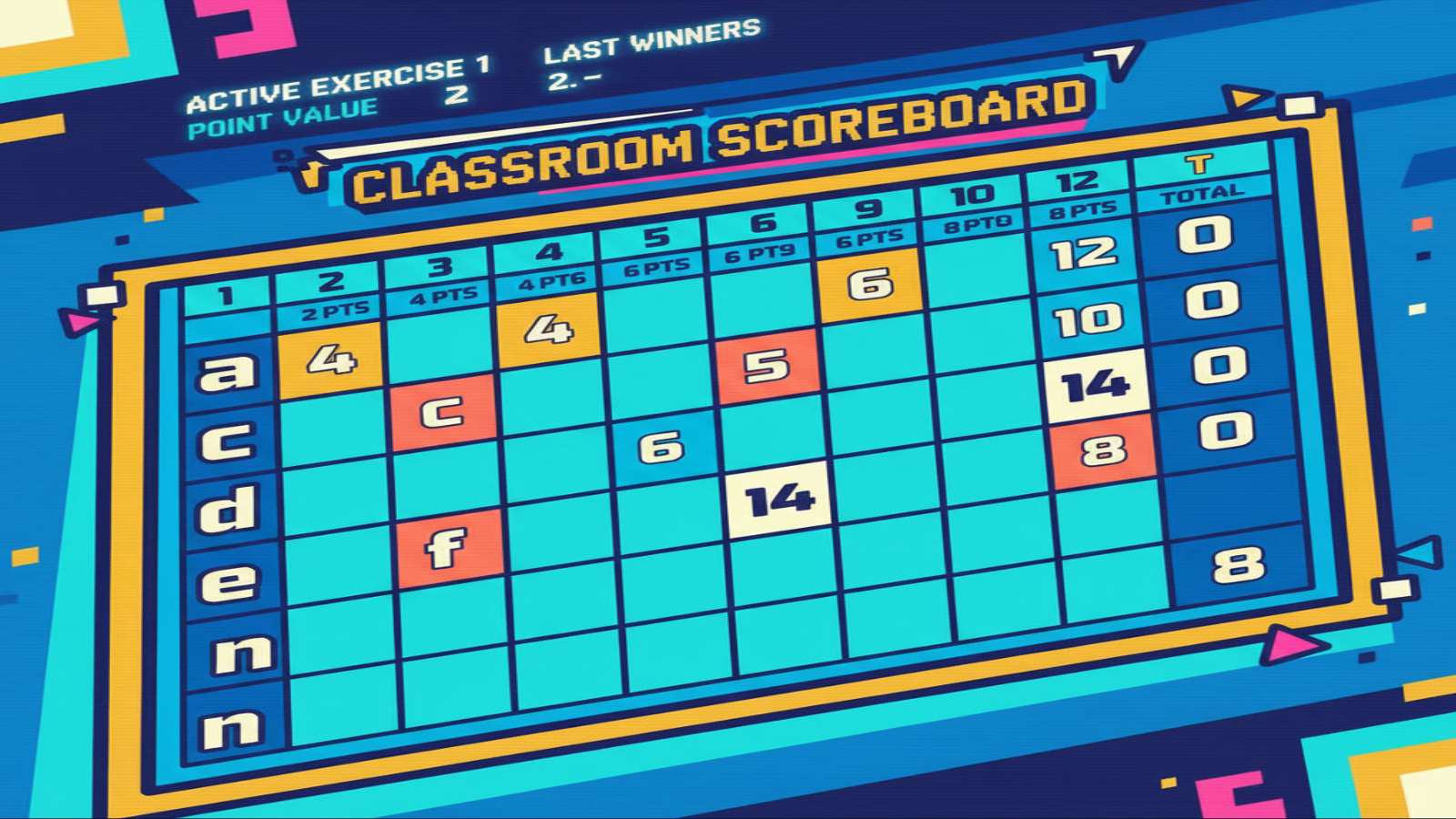
USE IT IN A PHONICS DICTATION RACE.
See how I use Pair & Group Generator to make small teams before a blend-word dictation race, then connect each team letter to Scoreboard.